
[Charge]
Is it possible to issue a quotation?
Is it possible to issue a quotation?
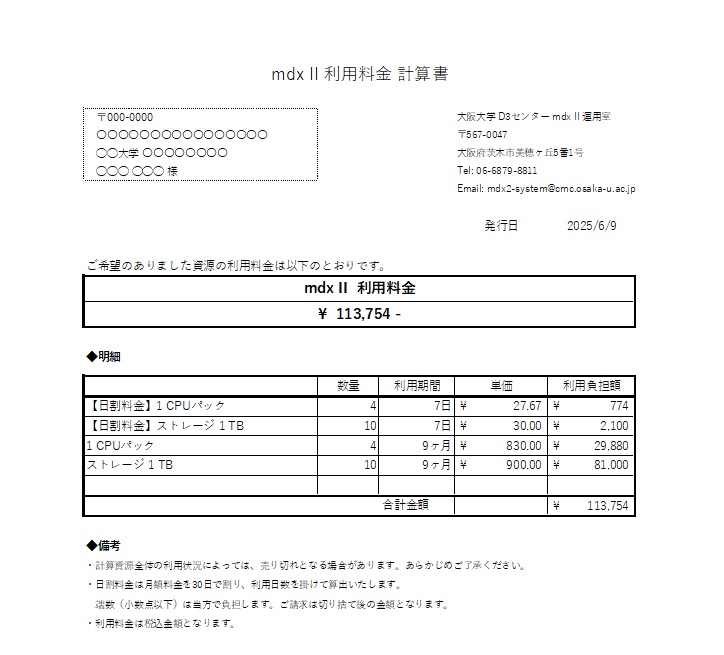
While we do not issue formal quotations, we can provide a document titled “Usage Fee Statement” as shown below.
If you would like to request one, please let us know via the contact form.
Can I Split the Usage Fee Across Multiple Budget Items?
Can I Split the Usage Fee Across Multiple Budget Items?
Yes, it is possible. However, please note that mdx II Resource Application Form does not support specifying multiple budget items.
If you wish to split the payment, please contact us via this inquiry form.
Can I Change the Timing of the Payment?
Can I Change the Timing of the Payment?
Yes, it is possible as long as the invoice has not yet been issued.
Please contact us via this inquiry form
to request a change.
What are the limitations of the free trial?
What are the limitations of the free trial?
The free trial offers the same environment as the paid service, except that usage is limited to a period of two weeks, with computing resources capped at a 16-CPU pack and 1 TB of storage.
Is it available for use from outside Japan?
Is it available for use from outside Japan?
Yes, it is. There are no restrictions based on the location of access.
When will the invoice be issued?
When will the invoice be issued?
We will issue the invoice in the month following the month of approval.
Once you receive the invoice, we would appreciate it if you could make the payment by the due date.
Example:
For the application to use the MDX II system approved in April, the invoice will be issued around mid to late May.
The invoice will include bank account details for the transfer.
When making the payment, please be sure to enter the 10-digit invoice number stated on the invoice.
*Payments from personal bank accounts are also acceptable.
Can I continue to use mdxⅡ across fiscal years?
Can I continue to use mdxⅡ across fiscal years?
Yes, you can continue to use mdxⅡ.
However, we do not accept usage applications that span across fiscal years.
Applications are only accepted for the current fiscal year (until the end of March).
Around the end of the fiscal year (February to March), we will provide information on how to continue using the service for the next fiscal year via this website and by email.
Please follow the instructions provided in the announcement to submit your application.
Once your application is approved, you can continue using mdxⅡ in the following fiscal year.
For details about the application and usage schedule, please refer to the following page:
Is it necessary to contract a floating IP for each virtual instance?
Is it necessary to contract a floating IP for each virtual instance?
If you want to connect directly to a virtual instance, you need to contract a floating IP for each instance.
On the other hand, it is also possible to assign a floating IP to only one instance and use it as a “bastion host,” connecting to other instances via this bastion host.
Configuration Example:
1. Create a bastion host instance
Create a security group named “bastion-sg” and assign it to the bastion host instance【Direction: Inbound】
・Rule: SSH
・Source: CIDR
・CIDR: 0.0.0.0/0
* Please configure the source CIDR to match your environment. Add other inbound rules as needed, depending on your requirements.【Direction: Outbound】
・any
* While “Outbound: any” is convenient, it also comes with security risks.
If the instance is used solely as a bastion host and external communication is unnecessary, follow the principle of least privilege and allow only the minimum necessary traffic.Create a security group named “target-instance-sg” and assign it to the target instances
【Direction: Inbound】
・Rule: SSH
・Source: Security Group
・Security Group: “bastion-sg”【Direction: Outbound】
・any
※The bastion host and the target instances must be on the same network.
[Account]
Is it available for use from outside Japan?
Is it available for use from outside Japan?
Yes, it is. There are no restrictions based on the location of access.
There may be an error when attempting to log in to the user portal using a GakuNin account. What should I do?
There may be an error when attempting to log in to the user portal using a GakuNin account. What should I do?
When logging in to the mdxII user portal using a GakuNin account, the dashboard may occasionally not display correctly, and a screen like the one below may appear.
In such cases, please try accessing the user portal again and attempt to log in.
If the issue persists, we kindly ask you to try using a different browser or clearing your cache.
Regarding Known Issues When Using the Campus Wireless LAN (odins-1x / eduroam)
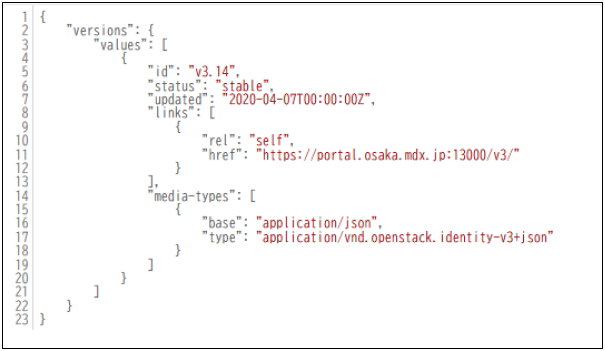
When connected to the campus wireless LAN service (odins-1x) of The University of Osaka or to the inter-institutional campus wireless LAN service for educational and research institutions (eduroam), an error screen may appear and you may be unable to log in if you select “Gakunin User” on the user portal login page and click “Connect.”
If this issue applies to you, please consider one of the following options:
・Access from an off-campus network (home network, mobile network, tethering, etc.)
・Access from an on-campus wired network such as a laboratory LAN
If the above options are difficult, you may also log in using an mdx II local account.
If you wish to create a local account, please ask your representative to submit a request for a local account using the mdx II User Addition Form below:
We apologize for the inconvenience and appreciate your understanding.
I followed the instructions to create a virtual instance, but I am unable to log in.
I followed the instructions to create a virtual instance, but I am unable to log in.
There may be an error in the security group settings.
Please temporarily test the connection using the following configuration.
※ Please note that this configuration allows access from all IP addresses and poses a significant security risk.
This configuration should only be used for temporary connection testing or for limited purposes such as bastion hosts.

Normally, please restrict allowed source IP addresses to the minimum necessary range.
If you are able to connect with the above security group settings, there may be an error in the source IP address configuration of your original security group.
In that case, please refer to the information below, review your settings, and make sure that the appropriate IP address range is allowed.
(Security groups can be configured not only by specific IP addresses but also by network segments.)
When accessing an instance from outside mdx,
you need to specify the global IP address of your network environment as the source (From) in the security group.
If a private IP address (e.g., 10.x.x.x, 192.168.x.x) is currently specified, you will not be able to connect.
You can check your own global IP address on the following page:
If you still cannot connect even with the above settings, there may be issues with the instance or network configuration itself.
In that case, please delete the instance and network configuration, and recreate them from the beginning following the virtual instance setup procedure.
We also provide the mdxⅡ Quick Guide, which we hope you will find helpful.
I Forgot My Login Password. What Should I Do?
I Forgot My Login Password. What Should I Do?
If you are using a GakuNin account, please contact the GakuNin administrator at your home institution.
If you are using a local mdx II account, please use the inquiry form
to request a password reset.
Please make sure to enter the email address that is registered with your mdx II account when filling out the form.
[Network]
What is the recommended use case for the “private-network”?
What is the recommended use case for the “private-network”?
The “lustre-network” is a shared network across multiple projects. If you need a network isolated within your project, please use the “private-network” instead.
A typical use case for the “private-network” would be setting up a database server and an application server within the private network. This allows communication between instances without exposing them to the internet and without configuring a router or Floating IPs.
When accessing the DB or application server, you can configure your setup to connect via a bastion (jump) server, as shown in the following example:
Is it necessary to contract a floating IP for each virtual instance?
What does it mean that the “lustre-network” is a shared network across projects?
What does it mean that the “lustre-network” is a shared network across projects?
The “lustre-network” uses a common network that is shared with other projects (i.e., other users).
It is the same network both physically and logically, meaning that multiple projects operate within the same network environment.
I cannot connect to the internet from an instance created on mdxⅡ.
I cannot connect to the internet from an instance created on mdxⅡ.
Please check the following points:
1. Security Group Settings
Please verify whether outbound traffic is restricted in your security group settings.
2. DNS Server Settings
If you created a virtual instance based on an OS image you uploaded, the DNS server settings may not be configured.
Check the DNS server settings with the following command (the method may vary depending on the OS):
cat /etc/resolv.conf
If there are no DNS server entries or they are incorrect, please configure a DNS server as shown below:
nameserver 8.8.8.8 # Google Public DNS

nameserver 8.8.4.4 # Google Secondary DNS
Is it necessary to contract a floating IP for each virtual instance?
Is it necessary to contract a floating IP for each virtual instance?
If you want to connect directly to a virtual instance, you need to contract a floating IP for each instance.
On the other hand, it is also possible to assign a floating IP to only one instance and use it as a “bastion host,” connecting to other instances via this bastion host.
Configuration Example:
1. Create a bastion host instance
Create a security group named “bastion-sg” and assign it to the bastion host instance【Direction: Inbound】
・Rule: SSH
・Source: CIDR
・CIDR: 0.0.0.0/0
* Please configure the source CIDR to match your environment. Add other inbound rules as needed, depending on your requirements.【Direction: Outbound】
・any
* While “Outbound: any” is convenient, it also comes with security risks.
If the instance is used solely as a bastion host and external communication is unnecessary, follow the principle of least privilege and allow only the minimum necessary traffic.Create a security group named “target-instance-sg” and assign it to the target instances
【Direction: Inbound】
・Rule: SSH
・Source: Security Group
・Security Group: “bastion-sg”【Direction: Outbound】
・any
※The bastion host and the target instances must be on the same network.
Is it possible to use Lustre file storage via Lustre mount from an instance that is connected only to a project-private network (“private-network”)?
Is it possible to use Lustre file storage via Lustre mount from an instance that is connected only to a project-private network (“private-network”)?
Lustre file storage is provided via a network called the “lustre-network,” which is shared across multiple projects.
Therefore, instances that are not connected to the “lustre-network” (i.e., connected only to a “private-network”) cannot mount or use the Lustre file storage.
We apologize for any inconvenience this may cause and appreciate your understanding.
For your reference, the use of Cinder volumes, as described in section “4.1.11 Using the File Server Area” of the mdx II User Manual (PDF), is available even from instances connected only to a “private-network.” We hope you will consider this option as an alternative.
As another alternative, you may also consider applying for Lustre’s S3DS service, which allows access to the Lustre area from your instance via S3.
With this method, you would need to use tools such as rclone on your instance to access S3. Therefore, in terms of usability, attaching and using a Cinder volume might be a more convenient option. However, we would appreciate it if you could consider this option as well.
Instructions on how to access S3 using rclone are provided in the mdx II User Manual (PDF) under “4.2.2. S3 Access Method.”
[Server]
Can I migrate a GPU node instance to a regular (CPU) compute node?
Can I migrate a GPU node instance to a regular (CPU) compute node?
Yes, migration is possible by creating a snapshot of your GPU node instance and then launching a new instance on a regular compute (CPU) node using that snapshot.
How to Restore an Instance from a Snapshot
How to Restore an Instance from a Snapshot
If you have already created a snapshot, you can restore an instance by following the steps below:
In the user portal, navigate to [Project] > [Compute] > [Instances].

Click the [Launch Instance] button.

Enter an instance name (optional), then click [Next].

Under “Select Boot Source”, choose either [Instance Snapshot] or [Volume Snapshot], and select the desired snapshot.
Note: There is no difference in the resulting instance regardless of which option you choose.
When selecting an instance snapshot:

When selecting a volume snapshot:

Configure the flavor, network, security group, and key pair, then create the instance.
For more details, please refer to Section 5.1.6.2 “Creating an Instance from a Snapshot” in the
“mdxII User Guide (PDF manual)”.
I followed the instructions to create a virtual instance, but I am unable to log in.
I followed the instructions to create a virtual instance, but I am unable to log in.
There may be an error in the security group settings.
Please temporarily test the connection using the following configuration.
※ Please note that this configuration allows access from all IP addresses and poses a significant security risk.
This configuration should only be used for temporary connection testing or for limited purposes such as bastion hosts.

Normally, please restrict allowed source IP addresses to the minimum necessary range.
If you are able to connect with the above security group settings, there may be an error in the source IP address configuration of your original security group.
In that case, please refer to the information below, review your settings, and make sure that the appropriate IP address range is allowed.
(Security groups can be configured not only by specific IP addresses but also by network segments.)
When accessing an instance from outside mdx,
you need to specify the global IP address of your network environment as the source (From) in the security group.
If a private IP address (e.g., 10.x.x.x, 192.168.x.x) is currently specified, you will not be able to connect.
You can check your own global IP address on the following page:
If you still cannot connect even with the above settings, there may be issues with the instance or network configuration itself.
In that case, please delete the instance and network configuration, and recreate them from the beginning following the virtual instance setup procedure.
We also provide the mdxⅡ Quick Guide, which we hope you will find helpful.
Is it possible to download the image file of a virtual instance created with mdxⅡ?
Is it possible to download the image file of a virtual instance created with mdxⅡ?
Yes, it is possible to download the image file.
You can follow the steps described in the user manual under “5.1.10. Downloading Image Files” to download the image file via the OpenStack API.
Why does changing the hostname of a virtual instance not update the instance name in the user portal?
Why does changing the hostname of a virtual instance not update the instance name in the user portal?
The instance name shown in the user portal is used by OpenStack as a label (similar to a tag) to identify and manage the virtual instance.
This instance name is automatically set as the hostname inside the virtual machine only at the time of the initial launch.
However, if the hostname is manually changed inside the virtual machine afterward, the instance name shown in the user portal will not be updated automatically.
Similarly, changing the instance name in the user portal does not automatically update the hostname inside the virtual instance.
[Storage]
Is it possible to use Lustre file storage via Lustre mount from an instance that is connected only to a project-private network (“private-network”)?
Is it possible to use Lustre file storage via Lustre mount from an instance that is connected only to a project-private network (“private-network”)?
Lustre file storage is provided via a network called the “lustre-network,” which is shared across multiple projects.
Therefore, instances that are not connected to the “lustre-network” (i.e., connected only to a “private-network”) cannot mount or use the Lustre file storage.
We apologize for any inconvenience this may cause and appreciate your understanding.
For your reference, the use of Cinder volumes, as described in section “4.1.11 Using the File Server Area” of the mdx II User Manual (PDF), is available even from instances connected only to a “private-network.” We hope you will consider this option as an alternative.
As another alternative, you may also consider applying for Lustre’s S3DS service, which allows access to the Lustre area from your instance via S3.
With this method, you would need to use tools such as rclone on your instance to access S3. Therefore, in terms of usability, attaching and using a Cinder volume might be a more convenient option. However, we would appreciate it if you could consider this option as well.
Instructions on how to access S3 using rclone are provided in the mdx II User Manual (PDF) under “4.2.2. S3 Access Method.”
The capacity of Lustre storage is not included in “Volume Capacity” shown on mdx II User PortalLustre
The capacity of Lustre storage is not included in “Volume Capacity” shown on mdx II User PortalLustre
Since Lustre storage is managed separately, its capacity is not reflected in the “Volume Capacity” displayed on the User Portal.

I would like to mount Lustre, but the Lustre client fails to start.
I would like to mount Lustre, but the Lustre client fails to start.
If the virtual instance lacks sufficient resources, errors may occur when starting the Lustre client.
In particular, flavors smaller than “vc8m16g” may fail to mount Lustre due to insufficient memory.
Therefore, as noted in the PDF manual, we recommend using an instance with a flavor of “vc8m16g” or larger when mounting Lustre.
We apologize for the inconvenience, but please resize or recreate the instance as needed.
Is it possible to expand the volume capacity?
Is it possible to expand the volume capacity?
Yes, it is possible to expand the volume.
However, you cannot expand the volume capacity while it is attached to the virtual machine.
You must first delete the virtual machine, then expand the volume capacity, and afterward create the virtual machine again.
※ If “Delete the volume when deleting the instance” is set to [Yes] when creating the virtual machine,

 the volume will also be deleted when the virtual machine is deleted, so you need to create a snapshot in advance.

In addition, the procedure differs depending on whether a snapshot of the volume has been taken.
・If no snapshot has been taken ・If a snapshot has already been taken
For more details, please refer to “mdxII User Guide (PDF Manual)” section 5.1.7 “Volume Capacity Expansion.”
*If you expand a boot volume created from the provided Linux (Rocky Linux / Ubuntu Server) OS image and then create a new instance from that volume, the additional capacity will be automatically allocated to the root partition.

*On the other hand, for additional volumes or boot volumes of Windows instances, simply expanding the volume size does not automatically extend the partition or filesystem on the volume.Therefore, you must manually perform partition and filesystem expansion operations within the virtual instance.
Can data be transferred or storage shared between Linux instances?
Can data be transferred or storage shared between Linux instances?
Yes, it is possible.
Using the Lustre File System as a Shared File System
By applying to use Lustre storage resources, you can use the Lustre file system as a shared file system from multiple instances.
For details, please refer to How to Use the Lustre File System.
Transferring Data or Sharing Storage Between Multiple Linux Instances Without Using Lustre Storage
For simple file transfers, you can transfer data between Linux instances using tools such as scp or rsync, without using Lustre storage. For example, data generated on one Linux instance can be transferred directly to another Linux instance.
For details, please refer to the following section of “mdxII Usage Guide (PDF Manual)”.
4.1.14 Data Transfer Between Linux Instances
This section describes how to transfer data using rsync.
If you want to continuously access and use the same data area from multiple Linux instances, please consider sharing storage using NFS or a similar method.
When transferring data or sharing storage between instances, you must use private IP addresses on the same network, and the required communication must be allowed by security groups or similar settings.
For details, please refer to the following section of “mdxII Usage Guide (PDF Manual)”.
4.1.15 Storage Sharing for Linux Instances
This section describes how to share storage using NFS.
Can I share files between Windows instances?
Can I share files between Windows instances?
Yes, it is possible.
The area of an additional volume attached to a Windows instance can be shared with other Windows instances by using SMB functionality.
To share it, attach an additional volume to the Windows instance, format it, and then configure sharing using SMB functionality.
When sharing files between Windows instances, you must use private IP addresses on the same network, and the communication required for SMB must be allowed by security groups or similar settings.
For details, please refer to the following sections of “mdxII Usage Guide (PDF Manual)”.
4.1.11.1 Using Cinder Volumes
This section describes the procedure for formatting an additional volume attached to a Windows instance.
4.1.14 Storage Sharing for Windows Instances
This section describes the procedure for sharing disk space using SMB functionality.
Can medical data, personal information, or data that may be personally identifiable be stored on mdxII?
Can medical data, personal information, or data that may be personally identifiable be stored on mdxII?
Regarding the handling of medical data, personal information, or information that may be personally identifiable, the mdxII Operations Office is unable to determine whether such data may be stored, as this depends on the nature of the individual data and the purpose of use.
Please review the mdx Terms of Use, Personal Information Protection Policy, Security White Paper, and other relevant documents, and make an appropriate decision at your own responsibility.
Reference page:https://mdx.jp/en/mdx2/p/terms
In addition, when reviewing the types of data handled on mdxII and the allocation of responsibilities during its use, the “6. Shared Responsibility Model” section of the Security White Paper may also be helpful. We would appreciate it if you could review that as well.
Please note that, at present, mdxII does not provide a dedicated service specifically designed for the storage or analysis of medical data or information that may be personally identifiable.
Therefore, users are responsible for implementing and operating any necessary measures, such as access control, encryption, log management, and deletion of data after analysis.
We apologize that we are unable to provide an individual determination regarding whether such data may be stored. Please review the above points and consider whether handling such data in the standard mdxII usage environment is appropriate.
[Activity report]
Are there any references that should be cited when writing a paper related to mdxⅡ?
Are there any references that should be cited when writing a paper related to mdxⅡ?
Yes.
When writing a paper that includes research results obtained using mdxⅡ, or a paper related to the system or functions of mdxⅡ,
please cite the publications listed on the following page.
[Other]
I would like to stop using the service. What procedures are required?
I would like to stop using the service. What procedures are required?
No special procedures, such as submitting a termination request, are required.
Once the usage period of the approved resources has ended, they will automatically become unavailable.
However, for operational reasons, if you decide to terminate the use of the resources (i.e., not to submit a renewal application), we would appreciate it if you could notify us at that time.
Can applications for materials science available on MateriApps be used on mdx II?
Can applications for materials science available on MateriApps be used on mdx II?
Yes, you can.
You can install applications provided by MateriApps by creating an Ubuntu virtual instance on mdxII and registering the MateriApps APT repository on that instance.
The basic setup procedure is as follows.
1. Create an Ubuntu virtual instance on mdxII
2. Register the MateriApps APT repository on the virtual instance
3. Install the application you want to use with the `apt install` command
Registering the APT repository alone does not install any applications. After registering the repository, specify and install each application you want to use individually.
※Depending on the application, additional configuration, acceptance of license terms, or downloading files from the official website may be required.
For instructions on registering the MateriApps APT repository and installing individual applications, please refer to the MateriApps LIVE! GitHub Wiki.
https://github.com/cmsi/MateriAppsLive/wiki/UsingMateriAppsInDebian